
Overlays
Every readout answers the same question: where do I stand against the reference lap, right here, right now?
Your lap against the lap you want to beat.
PaceGuru doesn't compare you to abstract best times — it compares you to one specific lap that you choose yourself.
Four sources for your reference lap
- Your own telemetry
- .ibt files from your iRacing folder — every lap of a recording can be picked individually, not just the fastest one.
- Third-party exports
- .csv files, for example from Garage 61 — load a pro's fast lap and compare yourself directly against it.
- Laps from your team
- Whatever a teammate has shared, you load right in the app — as a full reference with speed, pedals, steering and line.
- Opponent laps
- Laps of other drivers, recorded live into your own library — still usable weeks later.
-
Track matching
PaceGuru detects when the loaded lap doesn't belong to the current track, and tells you — instead of showing you false deltas.
-
Lap sequence mode
After every pit exit, the reference automatically switches to the next lap in the same file. No manual reloading.
-
Smooth delta
The reference time is interpolated between measurement points, so the delta doesn't jump in steps.
Where am I losing time?
The four readouts that show you instantly whether you're gaining or losing time right now.
-
Time Delta
How many seconds you're ahead of or behind the reference at this point.
-
Sector Delta
Time gained or lost in each third of the track.
-
Corner Delta
Time gained or lost across entry, apex and exit of each corner.
-
Speed Delta
How many km/h faster or slower you are at this point.
What's causing it?
Once you know you're losing time, PaceGuru wants to show you why, too — with a direct comparison of your input against the reference lap's.
-
Telemetry Comparison
Speed, throttle, brake and steering over distance – you against the reference lap.
-
Corner Comparison
Entry, apex and exit speed plus gear – you against the reference.
-
Steering Comparison
Your steering angle against the reference, drawn continuously.
-
Throttle & Brake Comparison
Both pedals as bars, your lap over the reference. Also flashes shortly before the reference brakes.
-
Braking Distance Bar
Shows the meters left to the braking point and empties from the bottom as you get closer.
-
Corner Brake Preview
Shows the reference's braking trace for the next braking corner before you reach it – the window stands still instead of scrolling.
-
Fuel Save Bar
Shows the distance to the next point where the reference deliberately lifts off the throttle to save fuel.
-
Fuel Calculator Coming soon
Tank level, predicted fuel per lap and the savings against your chosen reference – in liters and in laps of range.
How much grip is left?
These two readouts work instantly, even with no reference lap at all — so PaceGuru shows you something from your very first launch.
-
G-Forces (Bar)
Longitudinal and lateral acceleration as bars.
-
Grip Usage
Shows how close you're driving to the grip limit, and which direction still has room.
Dig deeper after the lap.
These analyses appear and disappear automatically with the replay — you don't have to switch anything.
-
Line Analysis
Your driven line against the reference, on the track map.
-
Rotation Comparison
Car from above: your rotation against the reference's, at the same track position.
It asks what you're doing right now.
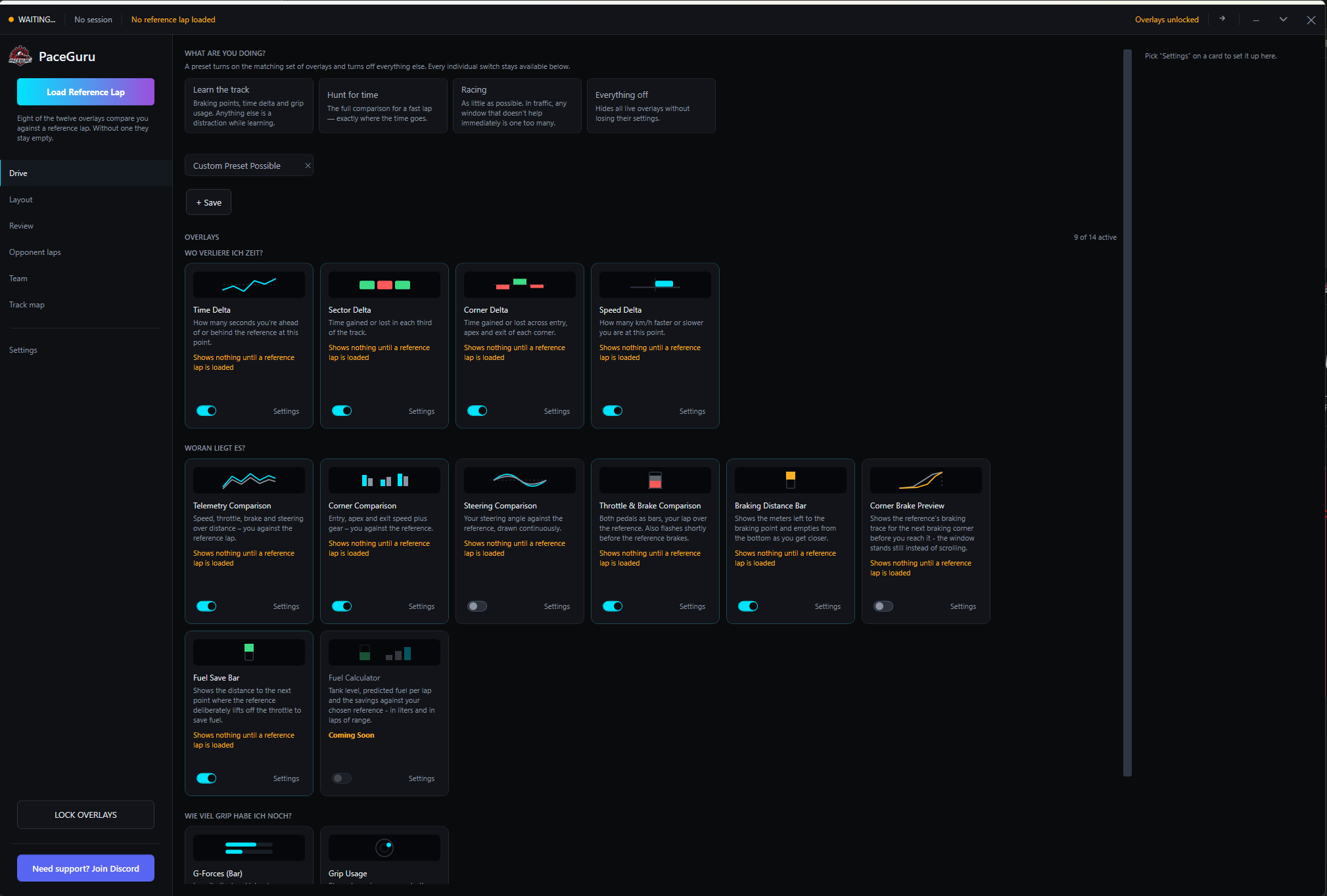
The app doesn't ask “which channels do you want to see” — it asks “What are you doing?” — and turns on the matching set of overlays with one click.
-
Learn the track
Braking points, time delta and grip usage. Anything else is a distraction while learning.
-
Hunt for time
The full comparison for a fast lap — exactly where the time goes.
-
Racing
As little as possible. In traffic, any window that doesn't help immediately is one too many.
-
Everything off
Hides all live overlays without losing their settings.
If none of the four fits, save your own selection as a preset.
Opponent laps library
PaceGuru records other drivers' laps in the background while you're in a session — and loads them later as a reference, even weeks afterward.
Names and iRacing IDs of other drivers are neither stored nor shown. The list shows car number, car and a short tag that lets you recognise the same driver again. If you like, you can add a note of your own. With favorites and a filter for the current session.
- Optionally record only your own vehicle class
- Works for time delta and sector delta
iRacing only exposes track position and lap number for other cars in live sessions — so no speed, steering or line comparisons with opponent laps.
Layout Editor
All overlays as rectangles on a view of your actually connected monitors — with a grid, resizing, and a “center on screen” function.
- Global hotkeys for locking, hiding and map zoom — even while iRacing is in the foreground
- Click-through while locked: mouse clicks pass through into the sim
- Disappears into the system tray icon, overlays keep running
What PaceGuru isn't
So you know exactly what to expect.
- Not a setup kit
- Doesn't suggest chassis setups.
- Not race control
- No live standings and no pit stop strategy.
- iRacing only
- Other simulations are not supported.
- No voice coaching
- No spoken callouts while driving.
- Windows only
- No macOS or Linux.
Try it free for 7 days
Create an account, confirm your email address, sign in to the app. No payment details, and the trial ends by itself.